|
1. Open Outlook
2. Click on Tools
3. Click on Accounts
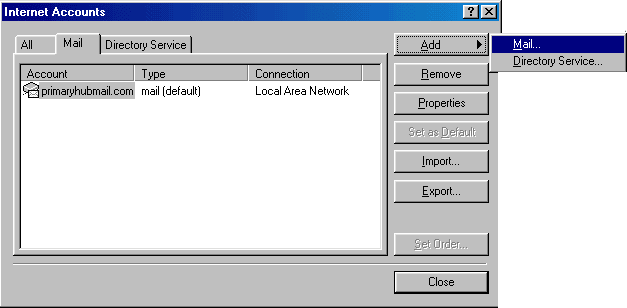
4. In the 'Mail'
folder, click on Add then Mail
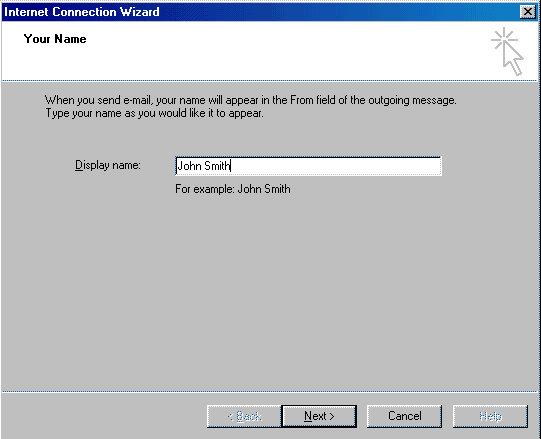
5. Enter the
name you want to appear on your messages.
Click Next
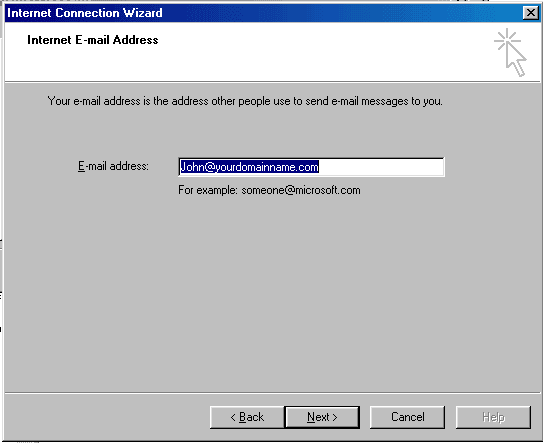
6. Enter your
full email address
Click Next
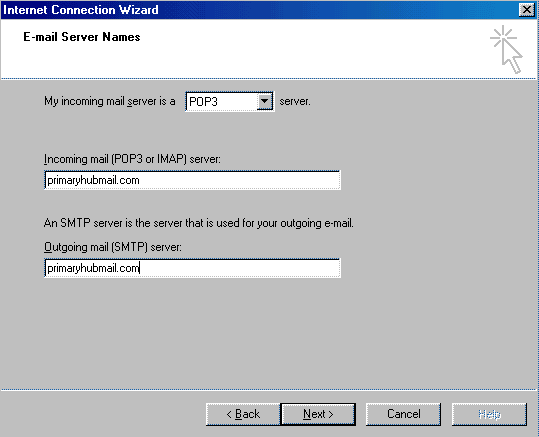
7. Enter primaryhubmail
as the incoming and outgoing mail server.
Click Next
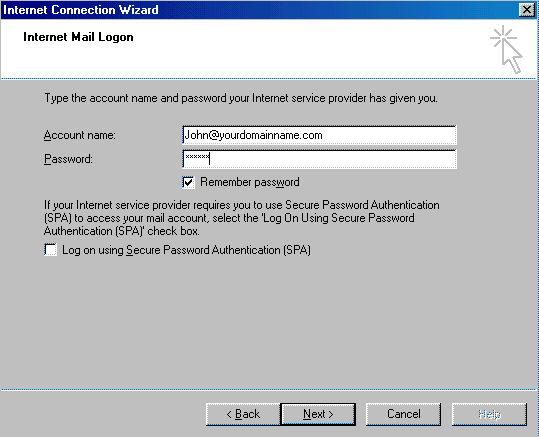
8. Enter you
full email address in the account name line
9. Enter your password in the password line
Click Next
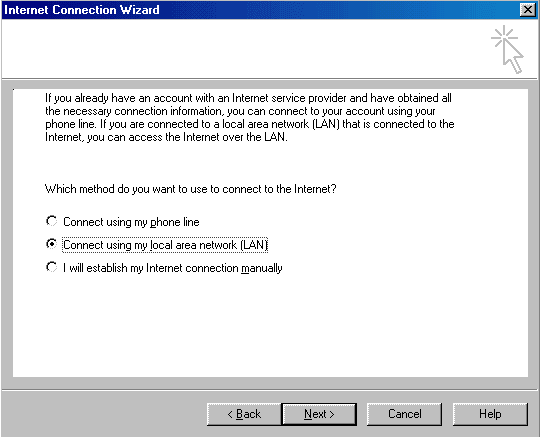
10. Choose your
connection type. I suggest LAN
Click Next
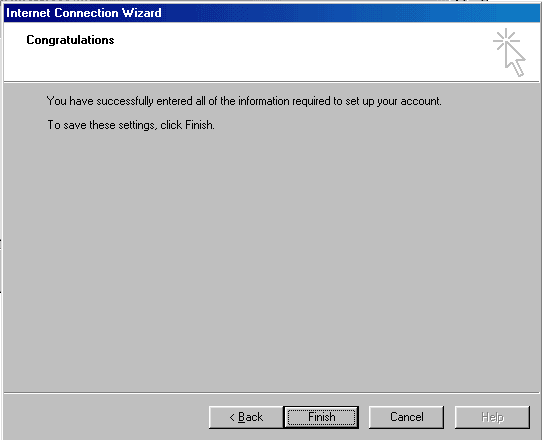
11. Click Finish
and your done.
12. Restart Outlook and click send receive to get your email.
You
must be connected to the internet to get your email.
Once your email is downloaded, you can edit and compose your
email offline, then send and receive your mail when you connect
to the internet.
All email is now downloaded from the internet and is now on
your computer.
To change your account password, you must login to your account
at www.primaryhubmail.com.
|
|